Brother P-touch PT-H110
A built-in keyboard for short folder, drawer and cable labels.
Check: TZe tape up to 12 mm; check batteries or the optional adaptor.
Independent UK equipment guides
Choose a label maker, print your postage or find the refill that fits. Practical advice for a more organised home and a smoother packing routine.
What do you need to do?
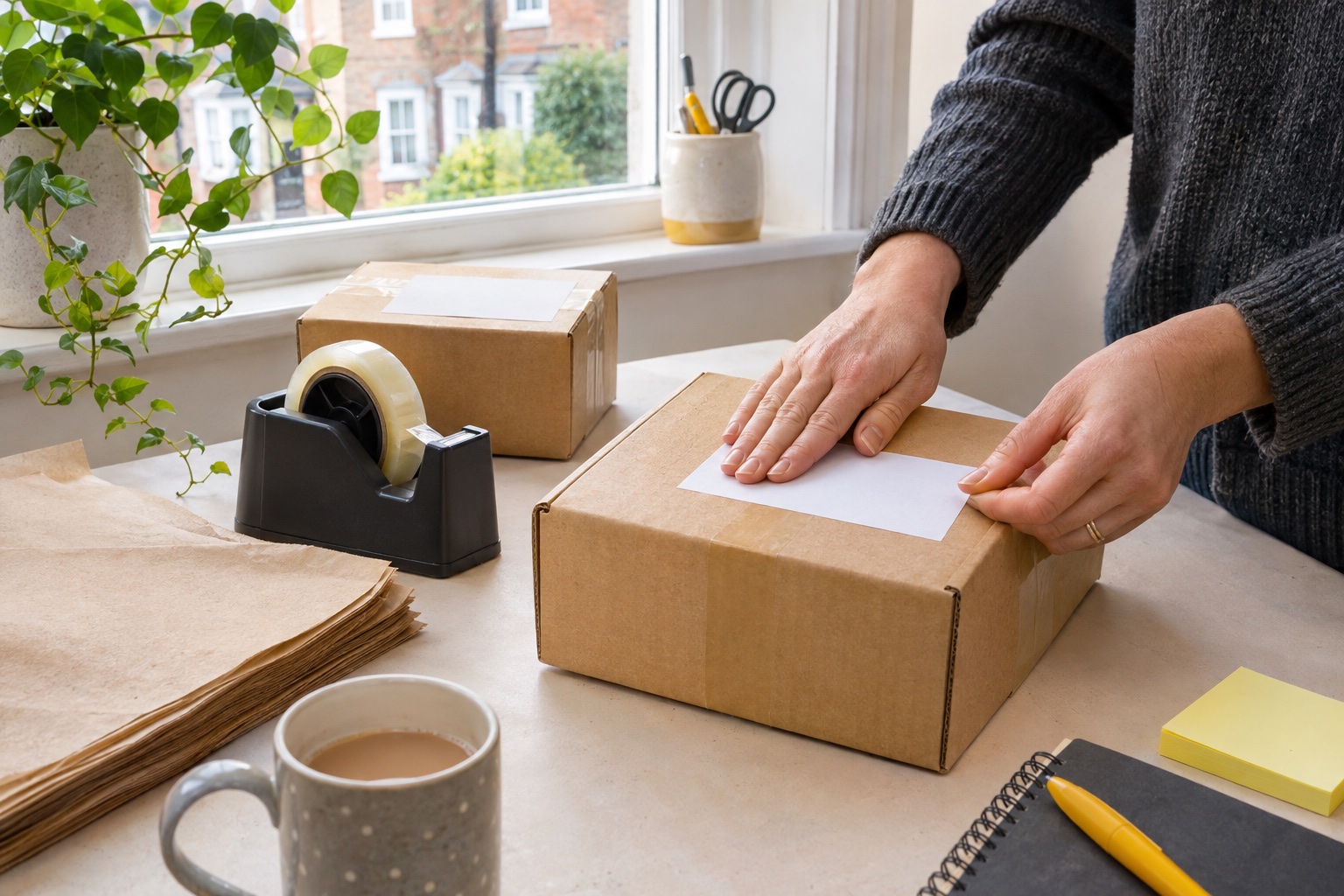
A useful place to start

Home label makers
Compare keyboard, phone and wider-tape models for folders, drawers and boxes.
Compare home label makers →
Postage printing
Start with the carrier’s output, your device and the refills the printer accepts.
Compare shipping printers →
Tapes and labels
Check the cassette family and supported widths before choosing a Brother TZe tape.
Check Brother TZe compatibility →
Packing and dispatch
Follow a practical checklist from picking and packing to the final handover check.
Use the packing checklist →Follow your booking
Go straight to the label, file and handover steps for your service.

Know your supplies
The cassette or roll family matters as much as the label size. Start with the exact printer model, then choose the width, material and adhesive for the job.
Find your tape or labelHelp with the printer you have
Check the print side, media type and the file you sent.
Find the blank-print checks →Match the PDF page, printer paper setting and printable area.
Check size and scaling →Work through clarity, scaling, placement and the issued label.
Check the parcel barcode →A home label maker produces narrow identification labels for objects such as folders, jars and cables. A shipping printer reproduces the larger label supplied by a postage provider. Start with the finished label and its dimensions, then check the machine, device and compatible supplies together.
Check the formats offered by your booking. An A4 output can suit an existing inkjet or laser printer, while a standalone thermal format needs a suitable printer and stock. Follow the provider’s scaling and attachment instructions. Some bookings also offer an eligible print-at-drop-off code.
Read the full model from the machine and match its supported refill family, width and format. Similar-looking labels can use different cassettes, holders, sensors or recognition systems. Check the complete refill code and pack details before ordering.
Use a printer and application that support your phone and the file or design you need to print. Bluetooth alone does not confirm compatibility with every app or an AirPrint workflow. Our device and model setup guides explain which connection and file checks to make.
Start with the symptom and the exact printer and stock. A blank label, incorrect size and an unreadable barcode need different checks. Confirm the downloaded file, media orientation, paper setting and supported print workflow before changing several settings at once.
Compatibility comes from the exact model’s own documentation.
UK models, local postage workflows and the supplies they need.
Clear reasons to choose a machine, with the limitations that matter.